The TUI
A tour of the complete user-facing interface: the three panes, tasks and sessions, files and review, Settings and the Inbox, full-window pages, updates, attachments, and narrow terminals.
This page explains what the features are for. The key tables live in Keybindings; the mental model behind tasks and sessions lives in Concepts.
Workspace, focus, and mouse
The normal workspace has three columns:
- Tasks is a tree of project → Task/worktree → terminal tab. Every level is always expanded. Selecting a tab opens that exact session.
- Workspace shows the active engine, shell, plugin, or read-only file tab. A Task can have several tabs, and a terminal tab can contain several splits.
- Files has All and Changes views for the selected Task's worktree.
Click a pane or row to focus it. F4 moves focus forward, ctrl+a h / l
moves left or right, and ctrl+q returns from the workspace to Tasks. From the
Tasks pane, right arrow enters the current engine tab. Mouse clicks select rows
and tabs; right-clicking a sidebar row opens the same common actions available
from the keyboard, including New conversation and New shell for that
Task's worktree, plus Copy task ID, Copy branch name and Copy path,
which put the Task's id, branch or worktree path on the system clipboard for a
rove api call, a git checkout or a cd in another shell, and Open in editor, Rename branch, and
Change engine for the row you clicked. Right-clicking a project header
offers New task, Field notes (the notes agents filed on that repo with
rove api note, newest first, each with its author and time — ↑↓ walks them
and d retires the one under the cursor, which is how a note whose fact has
stopped being true stops being injected into new sessions) and Remove
project. Clicking anywhere else dismisses that menu.
The Tasks rail sizes itself from the terminal — wider terminals get a wider
rail, so branch names stop truncating. Drag its right edge to set the width
yourself; the edge lights up when the cursor is on it, and double-clicking it
goes back to the width Rove picks. A width you drag to is remembered across
restarts, and it is an override rather than a replacement: a terminal too
narrow to honour it squeezes the rail down to what fits and pays the full
width back when the window grows again. The fold has no draggable edge — its
fixed width is the point of folding. Each folded project section starts with
its first letter and a rule, such as r── or w──; scratch tasks share an
s── section. The fold shows the
same projects the expanded rail shows and hides the same ones — a project you
have closed down to nothing is absent from both, and so are the routine
sessions the expanded rail folds behind its count row — and a section's letter
comes from the header the expanded rail prints, so two repos whose folders
share a name (work/api, oss/api) fold to w── and o── rather than to
a── twice.
Under a section, a task with open tabs folds to one cell per tab: the tab's
number, coloured by that tab's own state, so a second chat that finishes or
waits shows up folded. The numbering starts again at 1 for the next task,
and the number is the key that reaches it: ctrl+1…ctrl+9 switch to tab N
of the current task, with a · past the ninth. The hairline fold has no room
for a digit and keeps one cell per task.
Zen mode (ctrl+a z) hides Files and lets the workspace use the freed width.
The Tasks rail remains visible. Below 70 columns, the separate
narrow-terminal layout takes over instead.
With no tasks at all (a first launch, or all tasks deleted), the workspace
column shows a welcome panel instead of an empty pane: the keys to create a
task and open help (read from your live keymap, so rebinds show correctly),
and one line about the engines. That line reads one of three ways, because
"installed" and "usable" are different questions: the engines that can run a
task (installed and signed in), or — when none can — the ones that are
installed but whose login Rove cannot find, or, failing that, none at all. It
is the same probeEngines check rove doctor runs, so the two surfaces
cannot reach opposite verdicts. When something is missing (no engine CLI, no
git) the panel also says what to install, with rove doctor as the full
diagnosis.
Creating your first task replaces it with the normal workspace.
Status glyphs in the sidebar
Task rows carry worktree-level facts:
| Mark | Meaning |
|---|---|
▴ | Pinned Task |
+N / −N | Changed and deleted files in the worktree |
↑N / ↓N | Commits this worktree has that its base does not, and the ones the base has that it does not |
≠ / ✗ / ✓ | The pull request conflicts with its base, has failing checks, or has passing checks. One mark: a conflict outranks a check result |
↑N is the one mark that outlives a commit: committing empties +N / −N, so
without it a worker that committed its work and one that reported success and
delivered nothing render the same blank row — a difference you would otherwise
meet at land time, as EMPTY_BRANCH. ↑N and ↓N are absent rather than zero
when no base branch resolves, so a repo with no remote reads as it always did.
The PR mark drains to grey when the last PR poll failed — the reading stands,
but nothing is confirming it any more. Pending checks, review state, and a
merged or closed PR draw nothing. The Task's board status (in_review, done,
…) does not appear on the row either: you set it, so you already know it. Set it
from the row's right-click menu (Set status) or with rove api update --status;
it is a label, and changing it leaves the worktree, the branch, and every
running session alone.
Whose turn is it
Rove derives one more fact per Task — does this need me — and groups every Task by it:
| Group | Your move |
|---|---|
| needs you — a permission prompt, a quota wall nothing will clear on its own, a settled error, an engine that died having delivered nothing, a failed worktree deletion | answer it |
| ready to land — the pull request is open and approved | merge it |
| needs review — a worker filed a report, or a turn finished, and nobody has acted on it | read the diff |
| working — an engine is producing output, or Rove will resume it when its quota window rolls | nothing |
| quiet, or nothing has reported | nothing |
This group is derived, not declared. A task's board status is something a
person or a worker typed; a worker that crashed leaves it reading
in_progress forever. The group instead comes from what has owners: the
worker's report, the pull request as Rove last polled it, the engine's
arbitrated activity, and whether its session is still alive. Which is why two
of these are invisible to any tab's engine state — a task whose worker
reported and went quiet, and one whose PR was approved an hour ago.
It reaches you through the attention sort and the Kanban card badge, not as a glyph on the sidebar row: the rail's glyph column already carries per-tab engine state, and a second vocabulary in the same column turns the rail into a legend.
Two debounces keep the top group honest: an errored turn must stand 20 seconds (an engine that fails and retries itself would otherwise summon you into the gap), and a dead session 60 seconds (one sweep of the check that can see an engine die inside a live terminal). A permission prompt and a quota wall are marked at once — nothing but you clears either.
Sort the task list by this ordering with the sidebar's attention sort
(rove api context --repo . --text prints the same ranking in a shell): the
top of the list is what needs you next. rove api context also reports the
group for scripts and agents — see the API reference.
A plugin may add its own short label to the right-hand cluster, with a deadline: it fades when the plugin stops refreshing it, so a plugin that dies cannot leave stale words on your rows. See Plugin authoring.
Session state belongs to the engine tab that runs it, so the state glyph sits on the tab rows underneath. There are four states, and only one asks anything of you:
| Glyph | Meaning |
|---|---|
| spinner | Engine is working (also shown while a worktree materializes or deletes) |
! | Needs you: a permission prompt, a rate limit, an errored turn, a dead engine process, or a failed worktree deletion. Open the tab to see which |
● | Turn finished, and you haven't looked yet |
○ | Quiet: idle, not yet observed, a finished turn you've already seen, a shell tab, or a custom engine without activity tracking |
A tab labelled ⚠ <name> is a live hosted session that was missing from the
saved tab list. Rove exposes it instead of hiding a running process and adopts
it back into the Task's tab state when possible.
Seen means consumed. A ● clears the moment you actually open that tab,
select the task, with that tab active. Moving the sidebar cursor over the row
doesn't count. Once seen, the badge drops back to ○; there is no lingering
checkmark. Rove saves the completion timestamp per task and tab, so restarting
or reattaching does not relight a completion you already read. A later
completion has a later timestamp and appears unread as usual.
Each tab row reports its own activity, not the task's roll-up. Tab 2 can
spin while tab 1 rests. The tab strip at the top of the workspace and the
attention inbox keep a finer vocabulary (◷ rate limited, † exited, ?
needs input, ! error) over the same saved timestamps, because there the
glyph sits next to a word that explains it; a ✓ you have already read
settles back to ○, and stays settled after a restart.
Managing Tasks in the sidebar
Press / to fuzzy-search task titles, repositories, branches, and live tab
titles. Parent rows stay visible around a match. Arrow keys move through the
results, enter opens one, and esc restores the previous selection.
The selected Task answers these actions whether the cursor is on its worktree row or one of its tab rows:
rchanges the Task title.bopens a filterable local-branch picker and can also rename the current branch by accepting a new name. Project-main rows do not rename the repository's checked-out branch.vcycles through detected and custom engines. The new engine applies when the Task's engine session is reopened; it does not replace a running turn.oopens the Task directory in the configured GUI/workspace editor.shift+ppins or unpins a managed Task.shift+m, followed byj/k, reorders the row under the cursor at its own level: a tab moves within its Task, a Task moves within its repo group, and a project-main row moves the whole project. Moves stop at the edges (no wrap-around), and the new order persists across restarts.dis kind-aware: it forgets a project-main row, removes only the Rove record for a directory Task, or removes a managed Task and its worktree after the dirty-worktree safety check.
Right-clicking a row opens the same verbs as a menu, plus Run again on any Task that still has its brief. Rove stores the prompt a Task was created with, so the entry re-runs those exact words in a NEW Task with its own branch and worktree, leaving the original untouched. The confirm shows the brief in full before anything is created. A Task created without a prompt has no brief to re-run, and the entry does not appear for it.
The confirmation dialogs state the exact deletion boundary before anything is changed. See Concepts → Task for the three Task kinds and Sessions for session teardown.
Inbox
ctrl+a i opens it. The Inbox answers two questions, what needs me? and
where was I?, with one section for each:
- ATTENTION. Pending items, blocked ones first. An item appears when a turn
completes, a session asks for input, hits a rate limit, errors, or when the
engine process exits. Everything that is stopped until you act — a
permission prompt, a rate limit, an error, a dead engine, a failing routine —
sorts ahead of plain finished turns, and within each of those two groups the
oldest is first. A completed turn is the only item nobody is waiting on, so
it never queues in front of an agent that cannot move. Most items target one
task-and-tab; events without a tab identity target the whole task instead. A
newer event for the same target replaces the older one, and starting a new
turn clears it. A rate-limited item also names when its automatic resume is due
(
resumes 3:14 PM), so you can tell a wait from a dead end. - RECENT. The last handful of tabs you visited, most recent first. These aren't pending work, just jump targets; a spinner marks the ones still running.
enter opens the task and, when the episode names one, its exact tab; a
task-level episode leaves that task's current tab active. It also clears the
item. d clears without navigating (ATTENTION rows only; RECENT rows have
nothing to drop). You rarely need d: visiting
a target clears its item anyway, since visiting any tab resolves a task-level episode, and stale items
whose tab or task is gone get cleaned up in the background.
F7 jumps straight to the first pending item across all projects — the
oldest blocked one, or the oldest finished turn when nothing is blocked —
without opening the Inbox, and cycles on repeated presses. It works even
while you're typing inside an engine session. With nothing pending it just
says so.
Diff review
The files pane shows what changed; diff review lets you respond. Press d
on a file to open its read-only diff, then:
j/kmove the line cursor.vanchors a range. Move to the other end withj/k;vagain cancels. Skip this for a single-line note.cwrites a note for the current line or range.xdrops the note the cursor sits inside — the way out of a typo that isn't sending it.ssends all unsent notes, across all files of the task, to the engine as one prompt, and submits it.
The prompt the engine receives is just file, line numbers, and your words,
no code excerpt. The engine reads the worktree itself. Notes are stored per
task and survive restarts; the footer counts notes · unsent so you always
know what's pending. Sending doesn't switch tabs, so keep reviewing while the
engine works, and r reloads the diff when the engine has changed the file
under you.
A Task with no engine session has nowhere to send to — ctrl+w on the last
tab leaves one in exactly that state. s then leaves every note unsent and
says so, rather than reporting a delivery that did not happen.
Notes anchor to the file path and the line number displayed at the time you wrote them; they don't re-anchor when the diff changes underneath. These keys are fixed and not rebindable.
Files pane
All shows the worktree's tracked and unignored files as a navigable tree.
Changes starts with uncommitted changes against HEAD. If the working tree
is clean and Rove can resolve a base branch, it automatically switches to the
whole branch-versus-base view so committed agent work does not disappear. Press
b to choose the scope manually; the header always names the active scope.
The base is the task's PR base when it has one, then origin/HEAD,
origin/main, or origin/master, then a local main or master — so a repo
with no remote still gets a branch view instead of an empty pane beside a
sidebar row reporting commits. When none of those resolve, the scope line names
that as the reason rather than leaving b as a silent no-op.
Combined diffs. d on a directory row opens everything under it as one
diff in one tab, and the Changes tab's [D] diff everything chip does the same
for the whole worktree — reviewing a twelve-file attempt is one keypress and one
tab instead of twelve of each. A combined diff is read-only: a review note
anchors to a single path, so a diff spanning files carries none, and its footer
says so. Per-file notes are unchanged. A directory with nothing changed in the
active scope says so rather than opening blank.
What a diff states instead of drawing nothing. A renamed file's diff shows
the rename and the same +N −M as its list row, not the whole file as added. A
changed binary and a mode-only change each state what changed — in the
single-file view and in a combined diff's section — because a patch git wrote
entirely in its preamble has no hunks to draw. Pure renames name the original
path; additions and deletions of empty files state the change. These states
have no review cursor or line comments. Filenames are literal, including
brackets, *, ?, and leading :; selecting one cannot include another
file's hunks. Directory and whole-worktree diffs still combine their files. If git itself refuses (a pruned
remote, a renamed base branch), the pane shows git's own error and r retries;
a failed read is never reported as an absence of changes. An unreadable or
missing text file shows a read error and the same retry action; a valid empty
file says "empty file". While a different path, worktree, or comparison base
loads, the preview shows a loading state instead of the previous file's text.
A late result cannot replace the current preview or reopen a closed tab.
Open a text file with enter. Rove uses the configured terminal editor; for a
changed file it requests that editor's diff mode when Vim or Neovim is
available, otherwise it opens Rove's read-only preview. d always opens the
read-only diff in a workspace tab — for a directory row, the combined diff of
everything under it — a pastes an @path mention into the active
engine without submitting it, and o sends audio, video, or PDF files to the
system application. Remote files cannot use a local system viewer.
The pane watches local worktrees for changes and also supports r for an
explicit refresh. Set ROVE_FILETREE_WATCH=0 to turn the watcher off and leave
r as the only way to repopulate the list. See
Keybindings for the complete navigation
table.
Create a pull request with the active agent
Choose Ask agent to create PR above Files or press ctrl+a p. This is an agent
workflow, not a direct GitHub API action: Rove inspects the current branch,
target branch, upstream, and dirty-file count, then submits a prompt to the
active engine. The prompt asks the agent to review the diff, commit remaining
changes, push the branch, and run gh pr create.
Watch the engine tab for progress, failures, or questions. The action is
unavailable on the target branch and requires an active engine session. A
project's main row is that repo's own checkout rather than a task branch, so
the chip is not offered there; ctrl+a p still answers with the reason. A repo
can replace the prompt with .rove/pr-instructions.md; see
Per-repo init. Because the engine performs the
work, its own skills and approval rules still apply. The default prompt expects
an authenticated gh CLI and a pushable origin remote.
Creating a task
Every dialog in Rove is built from the same pieces — a bold title with esc
opposite it, capitalised field labels that light up when focused, rounded
wells around the inputs, chip buttons for choose-one rows, a key legend, and
a bottom-right [ Action ] where one applies. On a terminal under 34 rows
those borders drop away so the action button is never pushed off the bottom.
docs/design/dialogs.md is the rule and the components
that carry it.
Focus the sidebar and press n. The New task dialog starts on a mode selector
and an engine selector; tab walks every field and the bottom-right Create
button — except in the two path fields (the repo, and the Clone tab's parent
directory), where it first completes the highlighted suggestion in place,
exactly as a shell would, and only moves on once there is nothing left to
complete. ctrl+e cycles the detected engines from anywhere in
the dialog. Use ctrl+[ / ctrl+] to move between its three modes, or focus the
mode selector and use the left/right arrows (or h/l).
- For Existing picks a local repository and the ref to branch from. Rove
creates a new task branch and worktree, then opens it ready for the first
prompt. The current repository and its checked-out branch are the defaults.
Type a name to filter your saved repositories, or a path (
/or~/) to browse directories instead;↑/↓moves the highlight.tabcompletes the highlighted row without leaving the field — a browsed directory keeps its trailing slash, so the nexttabwalks one level deeper — whileentertakes the highlighted row and moves on to the branch field. For a repository Rove already tracks as a project, an extra opens row appears: leave it on "a new task worktree" for the behaviour above, or choose "the project itself" to open that repository's own checkout instead of branching off it. That is how you return to a project that left the sidebar after you closed its last tab — the branch field disappears, because opening a checkout forks from nothing. - For New Repo clones a Git URL into a chosen parent directory, derives an
available folder name, then creates a task from the requested base branch.
The parent-directory field browses the same way the repo field does,
tabincluded. The parent directory is remembered for the next clone. - Adopt Worktree imports existing git worktrees that are not already
tasks. The path-glob field filters by absolute path or basename;
entertoggles the highlighted row andctrl+aselects or clears all filtered rows. Adoption does not copy the directory or create a branch. Dirty and externally-created worktrees are allowed and labelled.
The chosen repository and engine become defaults for later task creation. Adopting several worktrees is item-by-item: successful imports remain even if another row fails, and Rove reports the result count.
Tabs and terminal splits
ctrl+t starts a fresh engine tab immediately; ctrl+e opens the full engine,
shell, and plugin picker. Tabs share the Task's worktree but keep separate
processes, scrollback, titles, and engine conversations. ctrl+[ / ctrl+]
switch tabs, F2 renames one, and ctrl+w closes it — including the last
one, which leaves the Task open with no session. Re-entering that Task from
the sidebar reopens the kind of tab that was there; from the empty pane
itself, enter or ctrl+e does the same.
Inside a terminal tab, ctrl+\ splits right and ctrl+= splits down. New
leaves run your login shell in the same worktree. F3 cycles split focus;
F2 and ctrl+w operate on the active split before falling back to the whole
tab. Split layouts and custom names survive a Rove restart, but which split had
focus does not. If a split process exits, its leaf disappears and the remaining
layout collapses naturally.
Who owns the mouse inside a terminal decides who owns selection. At a plain
shell prompt — a git log, a cat, anything that never asks for the mouse —
drag to select and Rove copies the text to your system clipboard on release.
Inside an app that tracks the mouse itself (Claude Code, Codex, vim, less,
htop) the click goes to the app instead, so its own selection and copy work
as they do in any terminal, and Rove paints nothing over them. Launching such
an app clears a selection Rove was still showing. Hold shift while dragging
to select out of a mouse-aware app anyway, the way iTerm2 and kitty do.
On Windows, ctrl+c copies a Rove selection and clears its highlight without
interrupting the embedded app. With no Rove selection, ctrl+c reaches the
app normally. A selection owned by the embedded app still uses that app's
copy behavior.
The optional horizontal tab strip can be always visible, visible only for multiple tabs, or hidden. The sidebar tree still lists every tab in all three modes. Persistence and process-lifetime details live in Sessions.
Worktree audit and cleanup
Focus the sidebar and press x to open the full-window Worktrees page. It
audits every non-main local worktree for saved projects, including directories
created outside Rove, and shows dirty state, remote-branch state, PR/merge
signals and age. l lands a tracked task branch; d starts the guarded
worktree-removal flow.
Deleting a worktree is not the same as deleting a task, branch, or engine history. Dirty deletion requires a second, explicit force confirmation. Read Managing worktrees before using either mutation.
Settings
Open Settings with ctrl+a ,, or press s while the sidebar is focused.
Use j/k to choose a section, l or right arrow to enter its rows, h or
left arrow to return to the section list, and enter to activate a row.
- General controls theme, light/dark mode, language, transparency, focus and split styles, notifications, keyboard hints, zen startup, editor choice, worktree location, terminal scrollback and the optional horizontal tab strip. It also shows available engine quota snapshots.
- Engines lists every engine Rove can launch: built-ins, the contrib
catalog, plugin-registered and your own, each with what local detection
found under it: where its binary is, and for engines with an account
detector whether you are logged in (login itself still happens in each
engine's own CLI). On an engine row,
spaceswitches it on or off (off keeps its settings, it just stops being offered when picking an engine for a task),enteredits the launch command,rrenames,xresets a built-in or removes a custom engine, anddmakes it the default. An engine you added yourself also shows the protocol it borrows — the built-in adapter that gives it a transcript reader, account detection and resume, orgenericfor none. You pick it when adding the engine; to change it later,xthe engine and add it again. A third line under each engine says how it reports to Rove: the hooks Rove installs into that engine's own config (and whether what is on disk is the current shape), whether the engine leaves completion markers Rove can read back, and whether it declares screen rules. A missing layer is not a fault — an engine whose hooks report every state needs no screen rules. The row at the bottom of the section installs the missing or outdated hooks for every engine at once; Rove also runs that install on every launch, so the row is for engines that arrived after Rove started. - Plugins enables or disables registered plugins live and edits settings declared by their manifests. Update, link and remove plugins from the shell.
- Marketplace lists plugins published under the
rove-plugintopic on GitHub, most-starred first, and installs one without leaving the TUI.enteron a row clones the repo and shows what it declares — every build command, startup hook, action and event handler — and installs only after you confirm; nothing the plugin authored runs before that. A row already in the registry is taggedinstalledand refuses a second copy. The listing is re-queried each time you open the section, which is also how you retry after GitHub was unreachable (it falls back to the first-party plugins). - Keybindings shows the active prefix, loaded YAML overrides and warnings. Edit the displayed YAML path; changes reload live.
- Feedback submits a GitHub Discussion through an authenticated
ghCLI. - Dev contains reset, a backend-exit action and experimental switches. Reset
clears UI and task-index state after confirmation, but leaves worktrees and
engine history on disk. The current Restart backend action exits only this
TUI window; other attached windows and hosted sessions remain connected. Use
rove daemon restartfrom a shell when you need to restart the daemon itself.
Zen mode always keeps the Tasks rail visible — it carries the affordance for leaving zen. There is no setting for this.
Starting sessions: the new-session dialog
ctrl+e is the one dialog for starting anything. It lists your detected
engines, a shell, and any plugin panes. Two toggles set what happens:
tabflips the destination: a new tab in this worktree ⇄ a forked child task in a fresh worktree.ctrl+fflips the context: a fresh conversation ⇄ continue this one.
Flip either toggle and the list narrows to engines only; a shell can't continue a conversation, and a plugin pane isn't a task.
Continue uses a native conversation fork only when the selected engine is the source engine and supports one, currently Claude and Codex. Copilot and Kimi use a transcript handoff even when continuing to the same engine. A built-in source can also hand off to a different built-in or custom target. A custom source has no readable transcript, so Rove refuses to continue it instead of opening a context-free tab.
Fork a child task opens the quick composer (prompt, attempts, engine, branch). The child branches from your task's current branch, so committed work carries over. Uncommitted changes stay behind; commit first if the child needs them.
Attempts fans the same prompt out to a round of up to 5 siblings, the
keyboard path to rove api add --count N --prompt …. They share one round id,
so rove api collect --group <id> reports them together. A round does not move
you: the siblings appear in the sidebar and start working while you stay on the
task you fired from — only a single attempt still carries you into the child,
because that one is "carry on from here". The chip stops at 5 where the CLI
allows 10; Orchestration calls 3-4 the sweet spot, and past
five the shell command is the better tool.
ctrl+a c (continue in a new tab) and ctrl+a f (fork a child task)
open the same dialog with the toggles pre-set.
To resume a conversation that is not already represented by a tab, use the
engine's own picker (e.g. claude-code's /resume) inside a fresh engine
tab. Availability and restart behavior vary by engine; see
Resuming a conversation.
Pages: ctrl+a 1 / 2 / 3
Three pages replace the workspace pane while the sidebar stays put. esc or
q closes a page; selecting a task in the sidebar also returns you to the
workspace. The chords stay live, so you can hop between pages directly.
Kanban (ctrl+a 1)
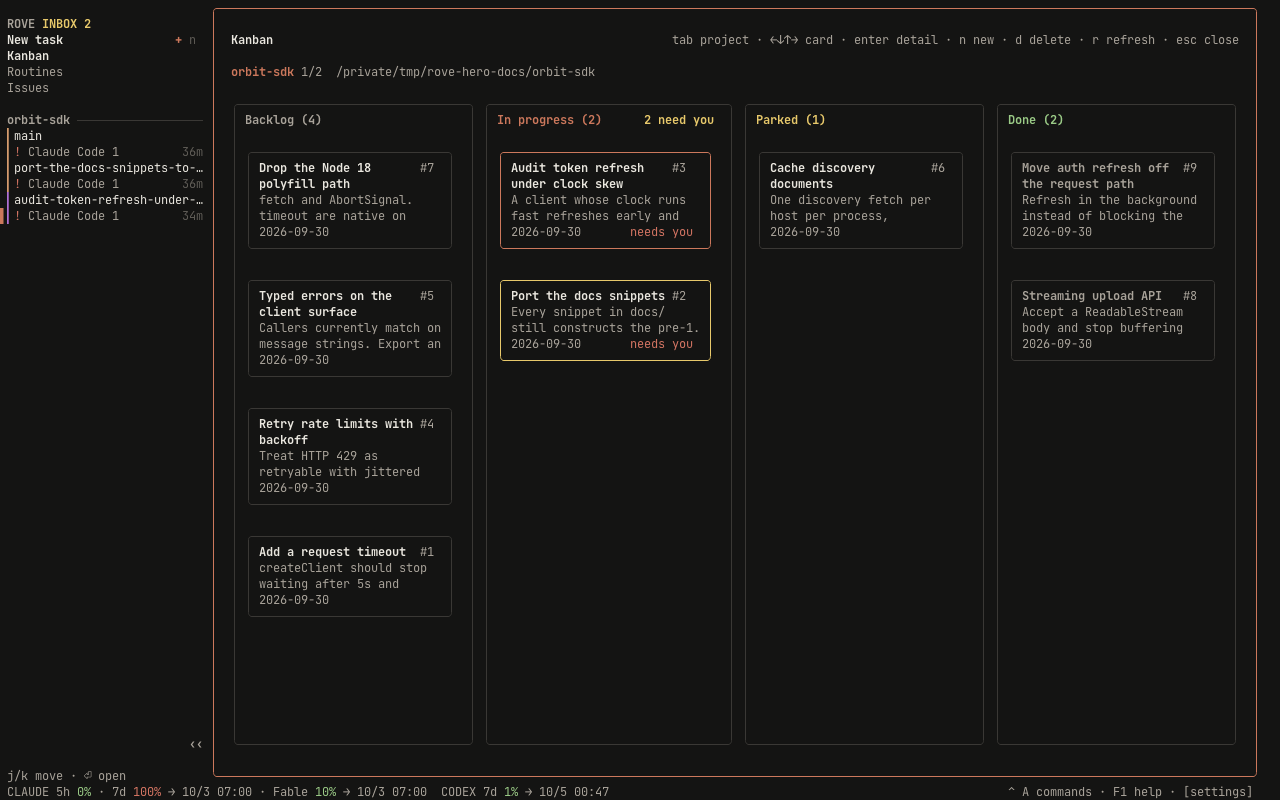
The issue store as a board, one project at a
time (tab cycles projects). A project gets a section if it can hold a
backlog at all — the issue store has a record for it, you saved it as a
project, or a live task runs in it — so deleting the task you finished leaves
its stories on the board. Four columns:
- Backlog. Status
open, not linked to a task. - In progress. Status
doing, or linked to a task. Either route works: agents move cards withrove api issue-update --task, and a session started from the drawer setsdoing. A linked card wears its task's derived group as a badge — needs you, ready to land, needs review, working (the same reading as the sidebar mark, above) — and the cards that need a person float to the head of the column, counted in the header asN need you. A parked card keeps its badge but never floats: its engine being blocked is often why somebody parked it. - Parked. Status
hold, linked or not; sits between In progress and Done. - Done. Status
done.
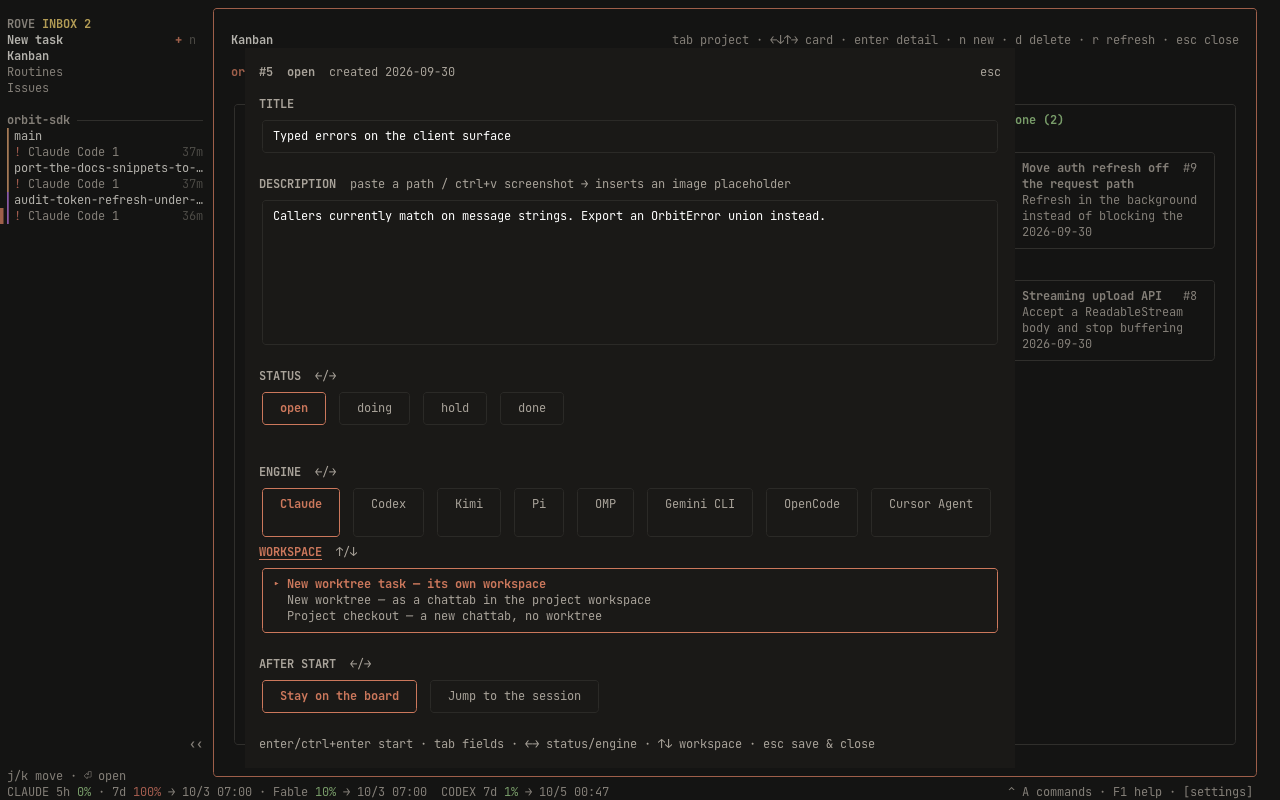
enter opens the detail drawer: edit the title and description, then start a
real session from the card: pick an engine, pick where it runs (the story's
own worktree, or the project checkout), and choose to follow it or stay on
the board. Starting links the issue and flips it to doing. n creates a
story, d deletes one (the issue record only; a linked task and its
worktree are never touched). The board refreshes every few seconds, so cards
moved by agents move on screen too.
The drawer's STATUS field is how a human moves a card between columns: tab
to it and ←/→ (or h/l) steps through open · doing · hold · done. The board's own
keys steer the cursor and d deletes the story outright, so without this the
only way to mark work finished was an agent running rove api issue-update --status — "I finished this" and "this never existed" were the same
keypress.
For a linked story, the drawer also shows an EVENTS snapshot with up to the 12 most recent engine lifecycle events Rove still holds for that task. It is a point-in-time diagnostic view: reopen the drawer to fetch it again. A daemon restart clears the in-memory event ring, so an empty list does not mean the linked Task never ran.
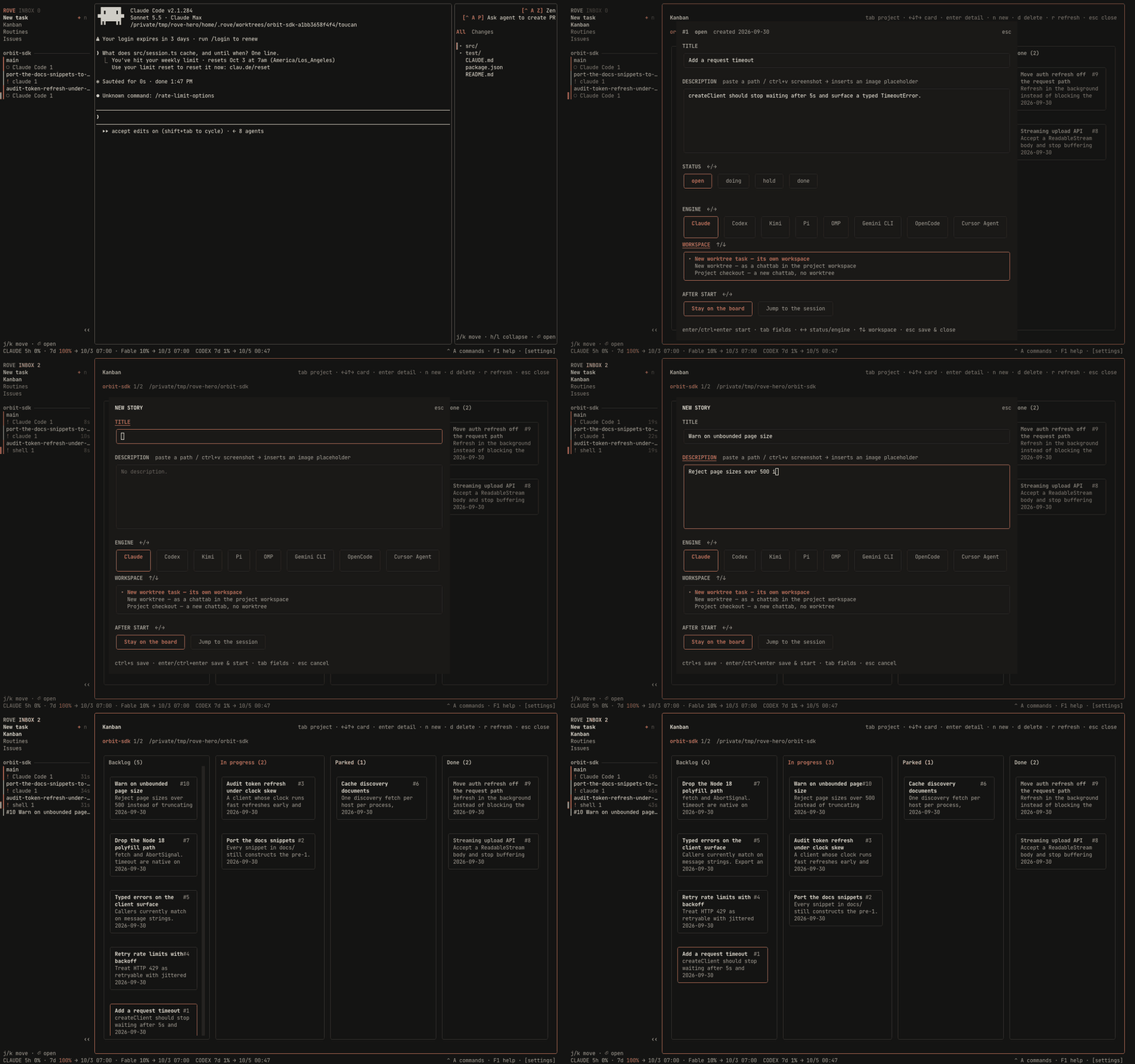
The board in motion: walking the cards, opening a story, filing a new one
with n, and an agent picking it up (rove api issue-update --task) while
the page is open, which moves the card into In progress on its own:
Routines (ctrl+a 2)
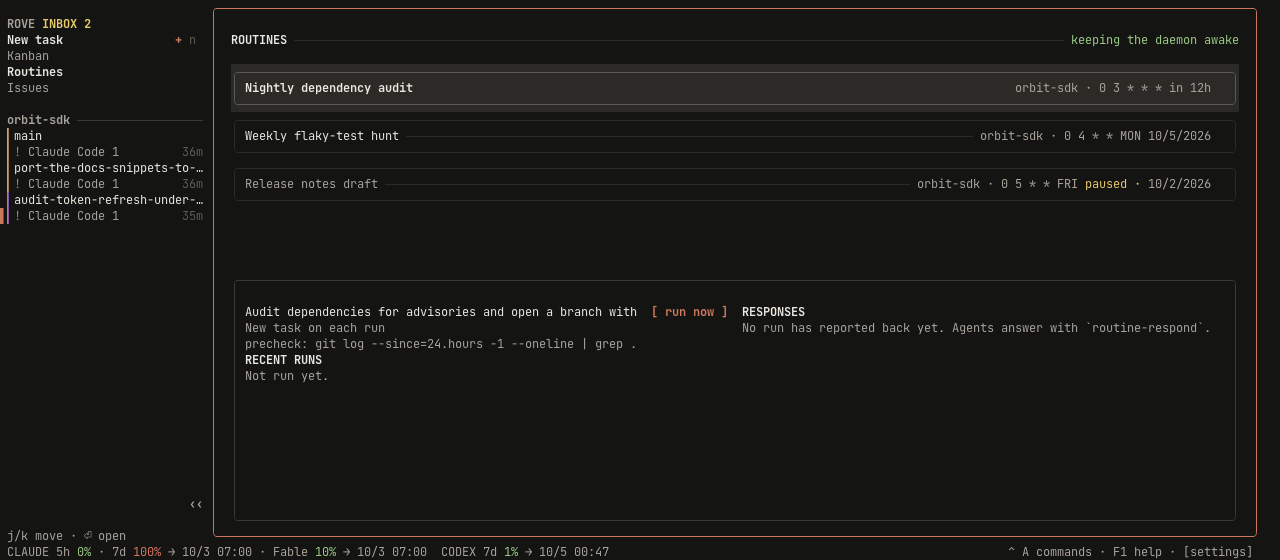
Daemon-owned scheduled prompts on five-field cron expressions. Each row shows the repo, the schedule, and the next run; the detail box below shows the prompt, the precheck if any, and the last few runs with their outcomes.
n creates a routine (name, repo, prompt, schedule), e pauses or resumes,
s runs one now, enter opens the task created by the latest run. There is
no in-page editing. Recreate the routine, or use rove api routine-update
(which also sets prechecks; see rove api). An enabled routine keeps
the daemon alive so schedules fire with no TUI attached.
Walked through end to end, with the page pictured and the cron and precheck rules spelled out: Routines.
GitHub Issues (ctrl+a 3)
A read-only view of the repo's GitHub issues, fetched through the gh CLI.
Open it from the sidebar rail or with ctrl+a 3; use rove api workitem-*
to browse and start work from issues when the TUI is not open.
When the page opens, a filters to issues assigned to you, tab switches
repos, and r refreshes past the cache. enter starts a Rove task from the
selected issue: the issue body arrives as the first prompt (fenced, and
explicitly marked as an untrusted report), and the task keeps a
linkedWorkItem pointer back to the issue. An issue that already has a task
shows that task's title on its detail line, and enter opens the task instead
of creating a second one. Nothing is imported into the local issue store and
nothing is written back to GitHub.
What's new after an upgrade
The first launch on a newly installed version opens a What's New dialog
listing the release notes for every version between the one you were running
and the one you just started. q, esc or ctrl+c dismisses it, and it does
not come back until the next upgrade — a relaunch on the same build goes
straight to the workspace.
It is a modal over your workspace, not a screen instead of it: the task list
you were coming back to stays visible behind it, which is the point. Long
ranges scroll — ↑↓ a line, ⇞⇟ a screen, home/end to either end — so an
upgrade that crossed six releases is readable all the way down.
A fresh install never sees it; there is no earlier version to have changed from. Neither does a downgrade.
The dialog chrome follows your UI language (Settings → Appearance → Language).
The release notes themselves are whatever was published to the
GitHub release, which today is
English only. They render as markdown — headings, nested bullets, code and
emphasis all come through, and a link shows its label without its address, so
the sentence starts at the left edge instead of behind two GitHub URLs. The
Update page and rove update list render them the same way. If GitHub is unreachable the dialog says so and shows the release
URL instead — it never blocks startup, and it is dismissible before the notes
finish loading.
Rove remembers what it has shown in app.whatsNewSeenVersion in
~/.rove/state.json. Deleting that key replays the dialog once.
Updates and version warnings
When a newer release is available, the sidebar shows an update affordance and
u opens the Update page. It compares the installed and latest versions,
shows release notes for the versions in between, and offers three actions:
uruns the displayed self-update command, leaves the TUI, and reports the result in the terminal.ropens the latest release page in the system browser.qoresccloses the page without changing anything.
For a specific release or a browsable list of the latest 20 releases, use
rove update <version> or rove update list; see
CLI reference. Releases that cross a known
breaking version show a warning before installation.
An amber DAEMON OUT OF DATE banner means this TUI and the already-running
daemon are different builds — the ordinary result of rove update, since the
daemon is a long-lived process that keeps running the code it booted with.
The banner names the chord that fixes it: ctrl+a r restarts the daemon and
relaunches this Rove on the installed build, after one confirmation. Finish any
immediate interaction first — the window goes away and comes back. Running
engine sessions are not at risk: they live in the separate PTY host, which
outlives both the daemon and the TUI, so open tabs reattach to the same
sessions. Settings → Dev → Restart backend does the same thing, and
rove daemon restart from a shell still works if you would rather.
Rove offers the refresh, never takes it: there is no auto-restart, and the chord is only bound while the two builds actually differ.
Narrow terminals (phone SSH)
Below 70 columns the TUI switches to one panel at a time, made for phone-sized SSH sessions. Nothing changes at 70 columns or wider, and there is no setting: it follows the terminal width.
- The task list and the workspace alternate: opening a task shows the
workspace full-width. A
‹ Tasksrow at its top-left returns to the list, by click or by the key it shows (ctrl+qby default). No new chords. - The first sidebar row is
↩ Recent: <task>;enterdrops you back into the task you were last working in, and it survives reconnects. - The files pane is hidden; the pane-cycle keys skip it.
- The tab strip always shows, compressed to the active tab plus a
2/3counter. The usual tab chords still switch. - The footer keeps one quota chip per engine (
CLAUDE 42%) and shrinks the hints to bare keycaps. - Dialogs center themselves with tighter padding, and Settings drops the inline hint beside each switch so the switch's own label fits. The paragraph above each group still explains what it does.
- Dialogs with a picker (new task, branch picker) shrink the picker's visible rows on a short terminal instead of pushing their own Create button off the bottom. The list still scrolls, so every entry stays reachable.
Attachments: drag and drop, paste
Drop an image (.png, .jpg, .jpeg, .gif, .webp) or a .pdf from
your file manager:
- Onto an engine session. The path lands in the engine's input, pasted but not submitted, so you can keep typing around it. The visible session catches the drop even when your keyboard focus is elsewhere.
- Into the quick-task composer or an issue drawer. The file becomes an
images[N]: /pathattachment line sent along with the first prompt.
ctrl+v in those dialogs does the same with the clipboard: a copied file
attaches by path, a raw screenshot is saved under ~/.rove/attachments/
first. Rove only ever passes paths; the engine reads the file itself.
Pasting text with newlines stays one paste. Rove asks the terminal for bracketed paste, so a multi-line block arrives framed and is handed to the engine as a paste rather than as typing that submits on the first newline, the engine shows it as a pasted block and you decide when to send.
Quota in the footer
For engines with a quota probe (Claude Code and Codex today), the footer
shows each usage window the vendor reports, e.g. CLAUDE 5h 42% → 14:00 · 7d 12%, with the percentage colored green below 75%, yellow from 75%, red
from 95%. The same numbers, same thresholds, appear in Settings → General.
The daemon refreshes quota roughly every 15 minutes, so treat the figure as approximate, not live. When Claude hits its subscription window, Rove schedules an automatic resume for the affected task and continues it once the window resets.